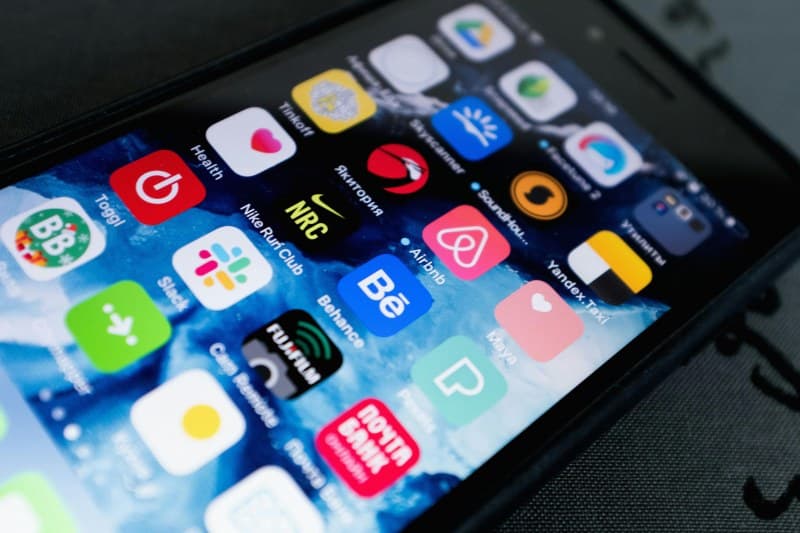
Last week, I downloaded a fun photo filter app, and the first thing it asked for was access to my location and contacts. I paused: why does a filter app need to know where I live? If you’ve ever had this thought, you’re not alone. App permissions are one of the most confusing parts of using smartphones, but there are two main reasons apps ask for them.
2 Key Reasons Apps Request Permissions
1. Functional Necessity
Many permissions are essential for the app to do its job. For example, a navigation app can’t give you directions without location access. A camera app needs to use your phone’s camera to take photos. These are straightforward—no hidden agenda here.
2. Data Monetization
The second reason is less obvious: apps collect data to make money. Companies use your location, browsing habits, or contact list to create targeted ads. A weather app might ask for location to show local forecasts, but it could also sell that data to advertisers who want to reach people in your area.
To help you tell the difference between necessary and unnecessary permissions, here’s a quick breakdown:
| Permission Type | Legitimate Use Case | Questionable Use Case |
|---|---|---|
| Location | Navigation app for directions | Photo app to target ads based on where you take photos |
| Contacts | Messaging app to find friends | Game app to send spam invites to your contacts |
| Camera | Video call app to show your face | Social media app to scan your photos for marketing data |
"Those who would give up essential Liberty, to purchase a little temporary Safety, deserve neither Liberty nor Safety." — Benjamin Franklin
Franklin’s words ring true here. While some permissions make apps more convenient, giving away too much access can compromise your privacy. It’s a balance between convenience and control.
Common Question About App Permissions
Q: If I deny a permission, will the app stop working?
A: Not always. Many apps let you use basic features without granting all permissions. For example, a food delivery app might still let you browse menus even if you deny location access—you just have to enter your address manually. If an app insists on a permission you don’t want to give, consider if you really need it.
How to Take Control of Your Permissions
Managing permissions is easier than you think. Here’s how to do it on iOS and Android:
- iOS: Go to Settings > Privacy & Security > [Permission Type] (e.g., Location Services) to toggle permissions for each app.
- Android: Open Settings > Apps > [App Name] > Permissions to adjust access.
Pro tip: Check permissions regularly—apps often update and ask for new access without you noticing.
Next time you’re asked to grant a permission, take a second to think: does this app really need this? By being mindful, you can enjoy the convenience of apps without sacrificing your privacy. After all, your data is yours to protect.