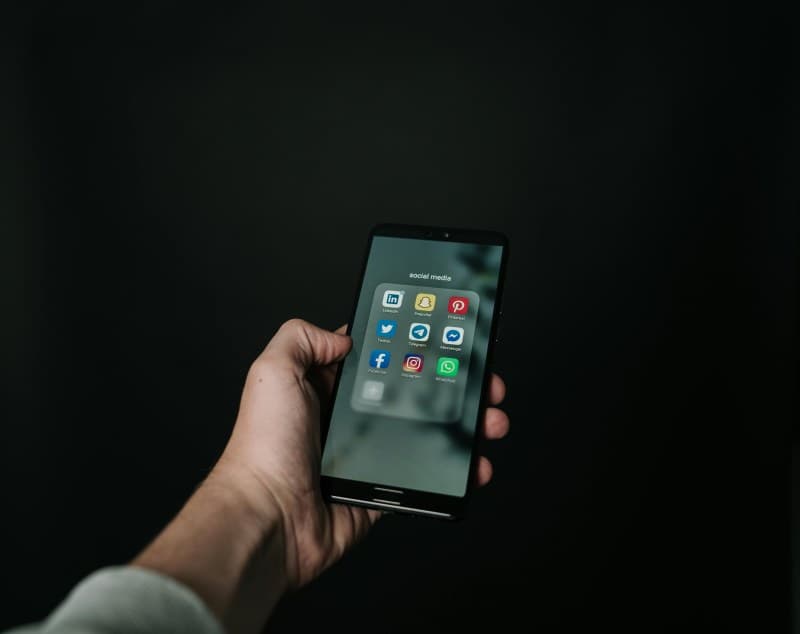
We all reach for our smartphones first thing in the morning and last thing at night—but how many of us are using them to boost productivity instead of just scrolling? Most of us stick to the basics: checking emails, sending texts, and maybe using a to-do app. But your phone has hidden tricks that can cut down on wasted time and keep you focused. Let’s uncover 7 lesser-known gems you can start using today.
1. Custom Focus Modes (Beyond Do Not Disturb)
You’ve probably used Do Not Disturb, but did you know you can create custom focus modes tailored to your tasks? For example, a "Work" mode that blocks social media and only allows calls from your team, or a "Study" mode that silences all notifications except your alarm.
Example: Sarah, a freelance writer, struggled with constant Instagram notifications breaking her flow. She set up a "Deep Work" focus mode on her iPhone that activates automatically from 9 AM to 1 PM. Now, she only gets alerts from her client’s email and her partner’s calls—no distractions.
2. One-Tap Notes (No Unlocking Needed)
How many times have you had a great idea but fumbled to unlock your phone and open the notes app? Most smartphones let you add a notes widget to your lock screen or set a shortcut (like double-tapping the back of your phone) to open notes instantly.
For Android users: Long-press the notes app icon and select "Create note" from the pop-up. For iOS users: Add a Notes widget to your lock screen or use the Back Tap feature (Settings > Accessibility > Touch > Back Tap) to assign a double tap to open Notes.
3. Batch Notifications to Reduce Interruptions
Constant notifications popping up can break your concentration. Many phones let you schedule notifications to arrive in batches (e.g., every hour) instead of one by one. This way, you can check them all at once without being interrupted every few minutes.
On Android: Go to Settings > Notifications > Notification Schedule. On iOS: Use Focus modes to silence notifications during work hours, then check them later.
4. Text Expansion for Common Phrases
Tired of typing the same phrases over and over (like your address, "I’ll be there soon," or your work email signature)? Text expansion lets you save these as shortcuts. For example, typing "addr" can expand to your full street address.
On Android: Open Gboard settings > Dictionary > Personal dictionary > Add. On iOS: Settings > General > Keyboard > Text Replacement.
5. Smart Screen Time Limits with Exceptions
Screen time limits are great, but what if you need to use a productivity app beyond your limit? Most phones let you set exceptions. For example, you can limit social media to 30 minutes a day but allow unlimited access to your calendar or project management app.
On iOS: Settings > Screen Time > App Limits > Add Limit > Select apps > Tap "Allow Exceptions" to add apps you want to exclude. On Android: Digital Wellbeing > App Timers > Select app > Set timer > No exceptions, but you can pause timers if needed.
6. Voice-to-Text for Hands-Free Tasks
Typing can be slow, especially when you’re on the go. Voice-to-text lets you dictate emails, notes, or texts without touching your phone. It’s surprisingly accurate—most tools (like Siri, Google Assistant, or Gboard) can understand context and correct mistakes.
Pro tip: Speak clearly and use punctuation commands like "comma" or "period" to make your text more polished.
7. Offline Access to Important Documents
Nothing’s worse than needing to access a document when you have no Wi-Fi. Most productivity apps (like Google Docs, Microsoft Word, or Evernote) let you save files offline so you can work on them anytime, anywhere.
For Google Docs: Open the document > Tap the three dots > Select "Make available offline." For Microsoft Word: Go to File > Save As > Choose "Save offline."
Which Trick Is Right for You? A Quick Comparison
Not sure which trick to try first? Here’s a comparison of three popular options:
| Trick | Ease of Setup | Time Saved Per Use | Best For |
|---|---|---|---|
| Text Expansion | Easy (5 mins) | 10-15 seconds | People who type repetitive phrases |
| Custom Focus Mode | Moderate (10 mins) | 15-30 mins/day | Remote workers or students |
| Voice-to-Text | Easy (2 mins) | 20-30 seconds per text/note | Commuters or busy parents |
Why These Tricks Matter
"Lost time is never found again." — Benjamin Franklin
Franklin’s words ring true today. Every minute you waste fumbling with your phone or getting distracted is a minute you could spend on something meaningful. These tricks help you reclaim that time, so you can focus on what matters most.
FAQ: Common Questions About Smartphone Productivity Tricks
Q: Do these tricks work on both Android and iOS?
A: Yes! Most of these features are available on both platforms, though the steps to set them up might differ. For example, focus modes are called "Focus" on iOS and "Digital Wellbeing" on Android. Always check your phone’s settings for the exact steps.
Q: Will these tricks drain my battery?
A: No, most of these features use minimal battery. Focus modes and screen time limits run in the background without using much power, and voice-to-text only uses battery when you’re actively dictating.
By incorporating these tricks into your daily routine, you can turn your smartphone from a distraction into a powerful productivity tool. Try one or two this week and see how much time you save!