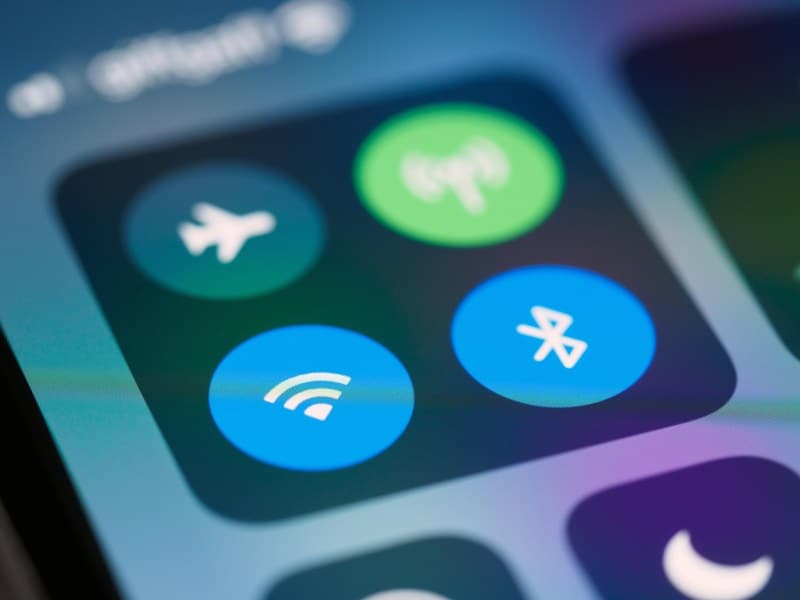
We’ve all been there: mid-video call, you’re in the middle of a thought, and suddenly your screen freezes. The “reconnecting” message pops up, and you’re left staring at a loading icon while everyone else moves on. Jane, a remote worker in Chicago, knows this pain all too well. Last month, she was presenting her quarterly report to her boss when her Wi-Fi dropped—by the time she got back online, the meeting had ended, and she had to reschedule. Frustrating, right? Let’s break down why this happens and how to fix it.
Why Does Wi-Fi Drop Mid-Call? Common Culprits
Wi-Fi drops aren’t random. They usually stem from one of these issues:
- Signal interference: Microwaves, baby monitors, or even neighboring Wi-Fi networks can disrupt your signal.
- Router overload: Too many devices connected (think phones, tablets, smart TVs) can slow down or crash your router.
- Distance from router: Walls, floors, and furniture can weaken the signal if you’re too far away.
- Outdated firmware: Routers need regular updates to fix bugs and improve performance.
- Channel congestion: If your router uses a crowded channel (like 2.4GHz), it’s more likely to drop.
Cause vs. Fix: A Quick Reference Table
Here’s how to match common causes to immediate and long-term solutions:
| Cause | Quick Fix | Long-Term Solution | Video Call Impact |
|---|---|---|---|
| Signal Interference | Move router away from microwaves/baby monitors | Switch to 5GHz network (less interference) | Freezes or audio cuts |
| Router Overload | Disconnect unused devices | Upgrade to a higher-bandwidth router | Slow loading or full drop |
| Distance from Router | Move closer to router | Install a Wi-Fi extender or mesh system | Weak signal or frequent drops |
6 Fixes to Keep Your Wi-Fi Stable During Calls
Ready to say goodbye to dropped calls? Try these:
- Reposition your router: Place it in a central, open spot (not in a closet or behind a TV).
- Update firmware: Check your router’s settings (usually via a web browser) for updates—do this every 3-6 months.
- Switch to 5GHz: Most modern routers have both 2.4GHz and 5GHz bands. 5GHz is faster and less crowded.
- Limit connected devices: Disconnect devices you’re not using (like old phones or smart speakers) during important calls.
- Restart your router: A quick reboot can fix temporary glitches—try this before a big call.
- Use an ethernet cable: If all else fails, plug your laptop directly into the router for a wired connection (no drops guaranteed!).
Preparation Is Key
“By failing to prepare, you are preparing to fail.” — Benjamin Franklin
Franklin’s words ring true here. Regular router maintenance (like updating firmware and repositioning) can prevent most Wi-Fi drops. Jane learned this the hard way—after her report fiasco, she started restarting her router every Sunday and switching to 5GHz for work calls. Now, her meetings go smoothly.
FAQ: Your Wi-Fi Questions Answered
Q: Will a Wi-Fi extender fix all my dropping issues?
A: Not always. Extenders help with distance, but if your problem is interference or outdated firmware, an extender won’t solve it. First, identify the root cause using the table above before buying one.
With these tips, you can say goodbye to mid-call Wi-Fi drops. Next time you’re in a meeting, you’ll be the one who stays connected—no more awkward reconnections!