Imagine this: You’re in a final job interview, mid-sentence about your biggest achievement, when your screen freezes. The Wi-Fi drops, and you’re left staring at a loading icon while your interviewer waits. That’s exactly what happened to Lila, a graphic designer in Chicago, last month. She spent 10 minutes panicking before reconnecting—only to find the interviewers had moved on to the next candidate. Wi-Fi drops aren’t just annoying; they can have real consequences.
Why Your Wi-Fi Drops Mid-Call (The Common Culprits)
Wi-Fi drops happen for a handful of reasons, most of which are easy to diagnose. Let’s break down the top causes:
Here’s a quick reference for common Wi-Fi drop issues and their immediate fixes:
| Issue | Main Cause | Quick Fix |
|---|---|---|
| Signal interference | Other devices (microwaves, Bluetooth speakers) or thick walls blocking the signal | Move router away from appliances; use 5GHz band if possible |
| Router overheating | Router left on 24/7 without ventilation | Turn off router for 5 minutes; place it in a well-ventilated area |
| Outdated firmware | Router hasn’t been updated in months/years | Check manufacturer’s website for firmware updates |
| Weak range | Router too far from your device | Move router to a central location; use a Wi-Fi extender |
6 Easy Fixes to Get Back Online Fast
- Reposition your router: Place it in a central, elevated spot (like a shelf) away from walls and metal objects. Avoid closets or cabinets—Wi-Fi signals hate being trapped.
- Update firmware: Most routers have an app or web interface to check for updates. Set a reminder to do this every 3 months.
- Switch to the 5GHz band: If your router supports it, the 5GHz band has less interference than 2.4GHz (great for video calls).
- Restart your router properly: Don’t just unplug it—wait 30 seconds before plugging back in. This clears the router’s cache.
- Use a Wi-Fi extender: For large homes, extenders boost signal to dead zones. Look for ones that match your router’s speed.
- Check for ISP outages: Sometimes the problem isn’t your router—it’s your internet service provider. Use their app or website to check for outages in your area.
Myths About Wi-Fi Stability You Should Stop Believing
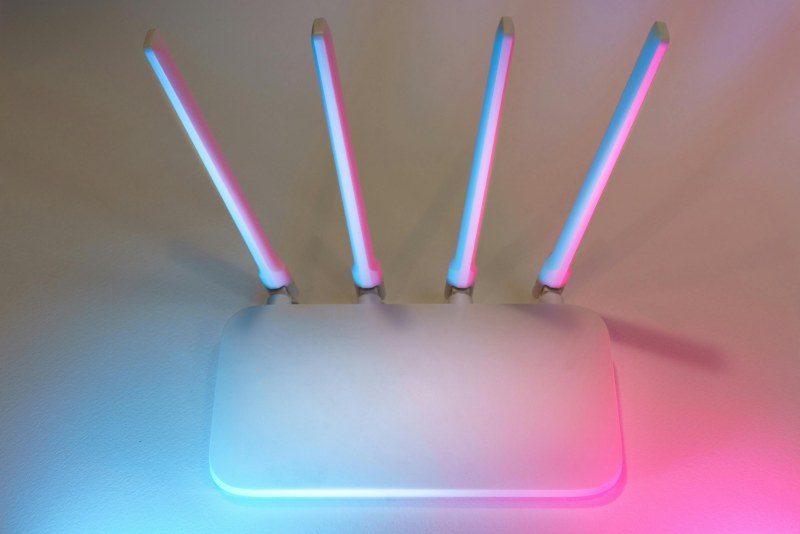
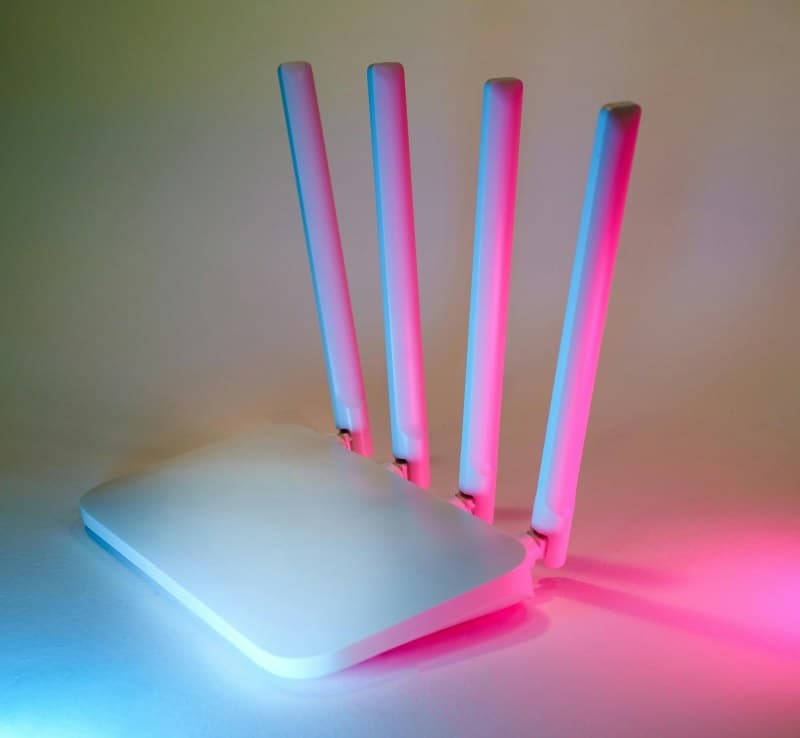
- Myth 1: More antennas = better Wi-Fi: Antennas matter, but placement and band selection are more important. A router with 2 well-placed antennas can outperform one with 4 in a bad spot.
- Myth 2: Closing apps on your phone fixes Wi-Fi drops: Apps running in the background use data, but they don’t cause Wi-Fi to drop. The issue is usually signal strength or router problems.
- Myth3: Wi-Fi speed equals internet speed: Wi-Fi speed is how fast data travels from your router to your device. Internet speed is how fast data comes from your ISP. If your internet is slow, even a great Wi-Fi connection won’t help.
“An ounce of prevention is worth a pound of cure.” — Benjamin Franklin
This old saying rings true for Wi-Fi issues. Taking 5 minutes to update your router’s firmware or reposition it can save you from the stress of a dropped call when it matters most. Lila now checks her router’s position and firmware every month—she hasn’t had a drop since.
FAQ: Your Wi-Fi Questions Answered
Q: Will buying a more expensive router fix all my Wi-Fi drop issues?
A: Not necessarily. Expensive routers offer better range and speed, but they won’t fix problems like ISP outages or signal interference from nearby devices. Start with the simple fixes first—you might not need a new router at all.
Wi-Fi drops are a common frustration, but they don’t have to be a regular part of your life. With a few small changes, you can keep your connection stable and avoid those panic-inducing moments. Next time your Wi-Fi acts up, try one of these fixes before reaching for your phone to call tech support.