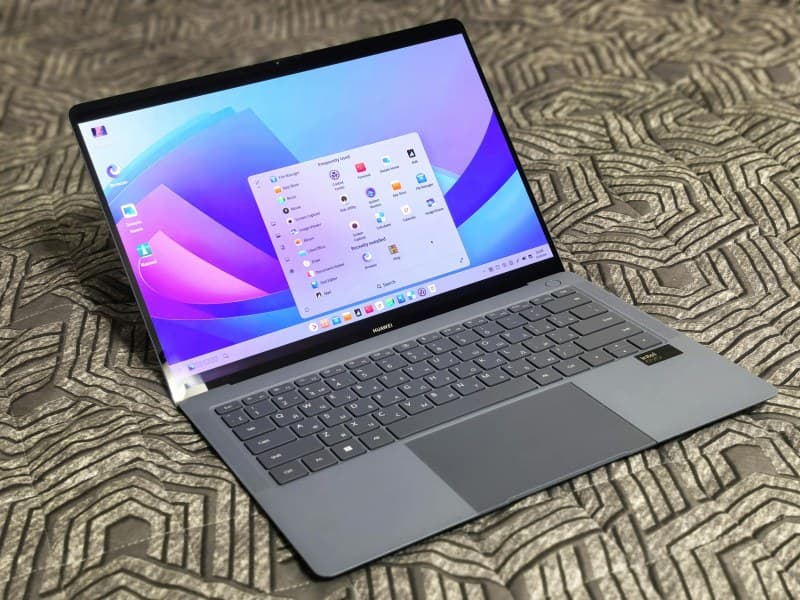
We’ve all been there: you’re mid-way through a work project or streaming your favorite show, and suddenly your laptop starts to feel like a hot plate. The fan kicks into high gear, pages take forever to load, and you’re left wondering if it’s about to shut down. For Sarah, a freelance writer, this happened right before a client deadline—her laptop overheated so bad she had to take a 20-minute break to let it cool down, nearly missing her submission time.
Why Does Your Laptop Overheat and Slow Down?
Two main culprits are usually to blame:
- Dust Buildup: Over time, dust clogs the laptop’s vents and fans, blocking airflow. Without proper ventilation, heat gets trapped inside, forcing the CPU and GPU to work harder (and slower) to compensate.
- Background Apps: Apps running in the background—like automatic updates, cloud syncs, or unused browser tabs—use up processing power. More power means more heat, which triggers the laptop’s thermal throttling (slowing down to prevent damage).
2 Key Ways to Fix Overheating and Slowing
Let’s break down the two most effective solutions:
1. Clean the Vents and Fans
You don’t need fancy tools for this. Grab a can of compressed air (available at most tech stores) and blow short bursts into the vents (usually on the sides or bottom of the laptop). Be sure to hold the can upright to avoid spraying liquid. For stubborn dust, use a soft brush to gently dislodge it.
2. Manage Background Apps
Open your task manager (Ctrl+Shift+Esc on Windows, Command+Option+Esc on Mac) to see which apps are using the most CPU or memory. Close any apps you’re not actively using—like that 10-tab browser window you forgot about. You can also disable startup apps that launch automatically when you turn on your laptop.
Here’s a quick comparison of the two fixes:
| Fix | Effort Level | Cost | Time to See Results | Long-Term Effectiveness |
|---|---|---|---|---|
| Clean Vents | Low (5-10 mins) | Low ($5-$10 for compressed air) | Immediate | High (if done monthly) |
| Manage Background Apps | Very Low (2-3 mins) | Free | Immediate | Medium (needs regular check-ins) |
“An ounce of prevention is worth a pound of cure.” — Benjamin Franklin
This old saying rings true for laptop care. Regularly cleaning your vents and checking background apps can prevent overheating before it becomes a problem, saving you from last-minute frustrations like Sarah’s.
Common Q&A
Q: Can using my laptop on a bed or couch cause overheating?
A: Yes! Soft surfaces like beds or couches block the laptop’s vents, trapping heat. Always use a hard, flat surface (like a desk or laptop stand) to keep airflow open.
Myth Busting
Myth: Keeping your laptop plugged in all the time causes overheating.
Fact: Plugging in your laptop doesn’t directly cause overheating, but using it while charging can increase heat production (since the battery is also working). If you’re using it for heavy tasks (like video editing), consider unplugging once it’s fully charged.
By addressing these two key issues, you can keep your laptop running cool and fast. No more mid-project panics or slowdowns—just smooth, efficient performance.