Last month, my cousin tried to snap a photo of her fluffy tabby cat using her budget single-camera phone. She assumed portrait mode—with its dreamy blurred background—was only for fancy dual-camera models. To her surprise, the AI-powered mode turned her living room couch into a soft backdrop, making her cat look like it stepped out of a pet magazine. That moment made her realize portrait mode isn’t just for high-end phones—it’s a tool anyone can use, if they know how.
How Portrait Mode Actually Works
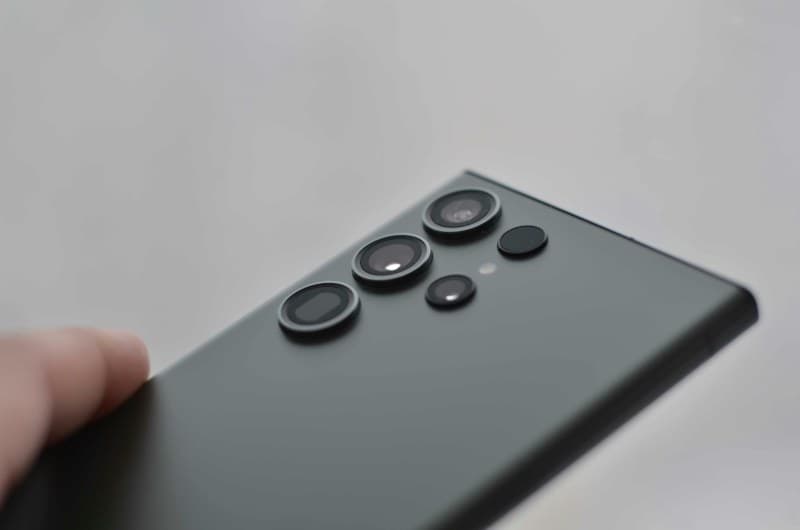
Portrait mode creates that professional-looking bokeh effect (blurred background) by simulating the depth of field of a DSLR camera. Here’s the breakdown: most phones use either dual cameras (to compare distances between two lenses) or AI algorithms (to guess depth from a single lens). Newer models with LiDAR (like iPhone 12+) use laser scanning to map the scene in 3D, even in low light.
4 Common Myths About Portrait Mode (And The Truth)
Let’s set the record straight on the most persistent myths:
- Myth 1: Only dual-camera phones can do portrait mode → Truth: Many single-camera phones (like Google Pixel 5) use AI to analyze edges and create depth.
- Myth 2: It’s only for people → Truth: Try it on pets, flowers, or even your favorite coffee mug—most modes work for any subject with clear edges.
- Myth 3: More blur = better portrait → Truth: Over-blurring can make your subject look disconnected from the background. Adjust the blur level to keep it natural.
- Myth 4: It’s useless in low light → Truth: LiDAR-equipped phones excel here, but even AI modes can handle dim rooms if you have a steady hand.
To help you choose the right phone for your portrait needs, here’s a quick comparison:
| Phone Type | Depth Sensing Method | Low Light Performance | Best For |
|---|---|---|---|
| Single-Camera | AI Algorithms | Moderate | Casual people/object shots |
| Dual-Camera | Stereo Depth Sensing | Good | Sharp portrait details |
| LiDAR-Equipped | Laser Scanning | Excellent | Low-light & moving subjects |
Pro Tips to Nail Portrait Mode Shots
Want to take your portraits to the next level? Try these:
- 💡 Use natural light: Stand your subject near a window—soft, diffused light makes skin look smooth and avoids harsh shadows.
- 📏 Keep distance: Position your subject 1-2 meters away from the background (and from you) for the best blur effect.
- ✏️ Edit post-capture: Most phones let you adjust blur intensity after taking the photo (look for “Depth Control” or “Portrait Edit” in your gallery).
- 🐾 Experiment with non-people subjects: Portrait mode can make a potted plant or a book look surprisingly artistic.
Classic Wisdom for Photographers
“The best camera is the one that’s with you.” — Chase Jarvis
This quote sums up why portrait mode is so valuable. You don’t need a bulky DSLR to take great photos—your phone is always there, ready to capture moments that matter.
FAQ: Can I Edit Bokeh After Taking the Photo?
Q: I took a portrait but the blur is too strong. Can I fix it later?
A: Yes! Most modern smartphones (iPhone, Samsung, Google Pixel) let you adjust the blur level post-capture. For example, on an iPhone, open the photo, tap “Edit,” then select “Portrait” to slide the depth control bar up or down. On Android, look for similar options in your gallery app.
Portrait mode is more than a gimmick—it’s a way to turn everyday moments into something special. Next time you’re with friends or spotting a cute pet, give it a try. You might be surprised at the results.