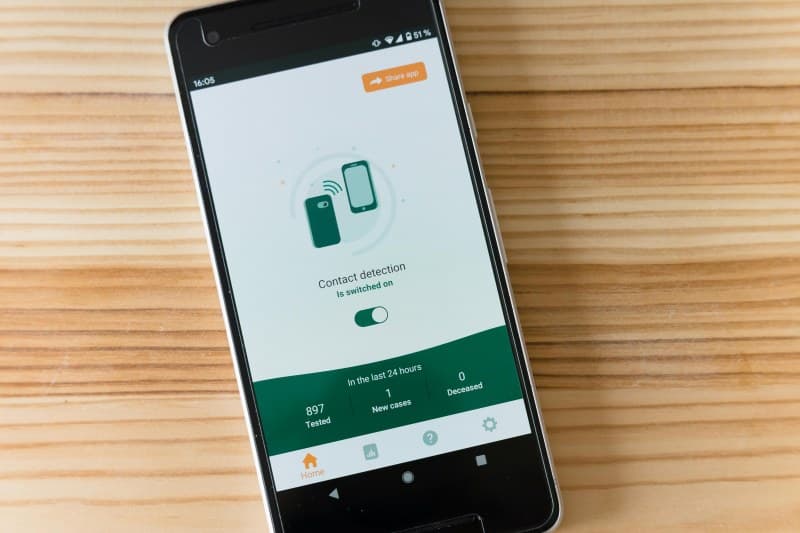
Let’s start with a relatable story: Sarah, a college student, noticed her phone was running out of space. She deleted a 1GB puzzle game she hadn’t played in months, expecting to get all 1GB back. But when she checked her storage, only 700MB was freed. Confused, she wondered—where did the other 300MB go? If you’ve ever had this problem, you’re not alone. App storage is full of hidden files that don’t disappear when you hit delete.
The Truth About App Storage
When you install an app, it doesn’t just take up space for its core files. It also stores cache (temporary data like images or login info to speed up the app), user data (your preferences, saved games, or chat history), and residual files (leftover bits from updates or deleted features). Deleting the app usually removes core files and user data, but residual files often stay behind—hence Sarah’s missing 300MB.
6 Myths About App Storage Debunked
Myth 1: Deleting an app removes all its data
False. Residual files (like old update packages or temporary logs) often linger in your phone’s storage. For example, a photo editing app might leave behind unused filter files even after you delete it.
Myth 2: Clearing cache will break your app
Mostly false. Cache is temporary—clearing it might make the app load a bit slower the next time you open it, but it won’t delete your saved data (like your Instagram posts or game progress). It’s safe for 99% of apps.
Myth 3: Unused apps don’t take up space
False. Even if you haven’t opened an app in months, its cache and residual files are still sitting on your phone. A study by Google found that unused apps take up an average of 1.5GB per user on Android devices.
Myth 4: You need third-party apps to clean storage
False. Both Android and iOS have built-in tools. On iOS, go to Settings > General > iPhone Storage to see which apps take up space and delete residual data. On Android, use Settings > Storage > Apps to clear cache or data.
Myth 5: Updating apps always uses more space
False. Some updates optimize storage by removing old, unused features. For example, a social media app might update to compress images, reducing its overall size.
Myth 6: All apps use the same amount of residual space
False. Games and photo/video apps tend to leave more residual files (like high-res assets or temporary download folders) than simple apps like calculators or notes.
Types of App Storage: What They Are & How to Manage
To understand how to optimize your storage, let’s break down the different types of app files:
| Type of File | What It Is | How to Clean | Impact on App |
|---|---|---|---|
| Core App Files | The main files needed to run the app. | Delete the app. | App is removed entirely. |
| Cache | Temporary data for faster loading. | Clear cache via device settings. | App loads slower first time, no data loss. |
| User Data | Your personal info (saved games, preferences). | Clear data via device settings or app settings. | App resets to default (you’ll need to log in again). |
| Residual Files | Leftover bits from updates or deleted features. | Use built-in storage tools or occasional factory reset (last resort). | No impact—files are unused. |
Wisdom from the Past
“The greatest wealth is to live content with little.” — Plato
While Plato wasn’t talking about phone storage, his words apply here. Being intentional about which apps you keep and regularly cleaning up unused files helps you avoid digital clutter and keep your phone running smoothly. You don’t need 50 apps—just the ones that add value to your life.
FAQ: Your App Storage Questions Answered
Q: How often should I clean my app storage?
A: For most users, once every 1-2 months is enough. If you notice your phone lagging or running out of space, check your storage more frequently. Focus on apps you use less often—their cache and residual files are usually safe to clear.
Practical Tips to Optimize Your Storage
- Use your device’s built-in storage analyzer to see which apps take up the most space.
- Clear cache for apps like social media or streaming services (they accumulate a lot of temporary data).
- Uninstall apps you haven’t used in 3+ months—you can always reinstall them later.
- For iOS users: Enable “Offload Unused Apps” (Settings > General > iPhone Storage) to automatically remove unused apps while keeping their data.
- For Android users: Use “Smart Storage” (Settings > Storage) to delete old photos and videos automatically.
By understanding how app storage works and debunking these myths, you can keep your phone running fast and avoid the frustration of running out of space. Remember—deleting an app is just the first step; cleaning up the hidden files is what truly frees up space.